Presets And Default Config
A preset is a reusable bundle of config files, plugin selections, and factory file selections. Use presets to spin up new instances with a consistent starting point, or to save a working setup so you can replicate it later.
What A Preset Contains
server.cfgmappool.txtaccess.txtworkshop.txt- Any custom flat
.cfgor.txtconfig files you add - Plugin files under the preset's plugin tree, including
.py,.txt, and.so - Factory files under the preset's factory set
- LD_PRELOAD user hooks (
.sofiles) from the Hooks tab - A set of selected minqlx plugins
- A set of selected factory files
- The 99k LAN Rate toggle state
Server Runtime Compatibility
A preset remembers which Server Runtime — minqlx or minqlxtended — it was saved from. On the Load Preset tab, every preset row shows that runtime as a small badge, so you can see at a glance whether it matches your current host.
You can load a preset saved from the other runtime. Your server config, map pool, access list, workshop items, and factory selections all come across intact. Plugins need translating: minqlx and minqlxtended plugins aren't interchangeable — they're written against different APIs — so a preset's copy of a plugin can't be installed on the other runtime as-is.
Standard plugins you never edited are handled for you. QLSM swaps each one for your runtime's own version of the same plugin, silently, and keeps it enabled or disabled exactly as the preset had it. Nothing is asked and nothing is lost, so most cross-runtime loads just work — a preset saved from a stock minqlx server loads onto a minqlxtended host with no dialog at all.
Your plugin selection is never changed. Whatever you decide below, plugins end up enabled exactly as the preset had them. A cross-runtime load will not switch on plugins the preset had switched off.
Picking a mismatched preset shows a short warning under its name. If anything genuinely needs your decision, loading it opens a dialog before anything changes — and it lists only those, not every plugin in the preset:
- A standard plugin whose copy in the preset differs from the standard one — either because you edited it, or because the preset was saved before that plugin was last updated. QLSM can't tell those apart, so it doesn't guess. Your runtime's own version of the plugin is pre-selected to be used instead; taking it means the preset's copy of that file doesn't carry over, and clearing the tick drops the plugin entirely, since the preset's copy can't run on this runtime either way.
- A plugin with no equivalent on your runtime — usually a custom plugin of your own, occasionally a standard plugin the other runtime doesn't have. It can't be installed, and it's listed with the reason. If the preset had it enabled, you're told it's being switched off.
Nothing is applied until you confirm.
Built-in Presets
QLSM ships a set of built-in presets that provide ready-to-use baselines. Built-in presets cannot be modified, renamed, or deleted — they are read-only. The Preset Manager's Save tab treats a built-in name as a new-name validation conflict instead of overwrite mode, and the Load tab disables delete for built-ins.
The default preset is always available as the standard baseline. Additional built-in presets may appear in the list depending on your QLSM version.
To customize a built-in preset, load it and save it under a new name from the Preset Manager's Save / Overwrite tab.
Use Save Preset when you want to turn the current draft into a reusable preset:
Use Load Preset any time you want to replace the default draft with one of your saved configurations:
Plugin and Factory Selection
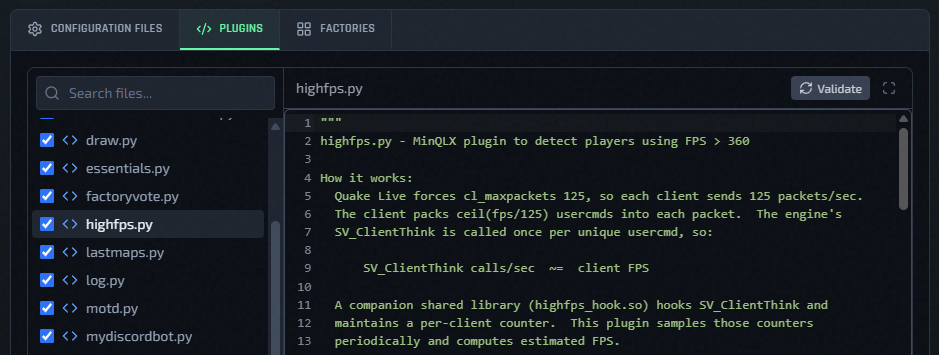
Instead of editing qlx_plugins manually, presets use checkboxes. Check the plugins you want; uncheck the ones you don't.
Only plugins in the top level of the Plugins tab can be checked. Files inside subfolders
have no checkbox — they are helper modules that a top-level plugin imports, and minqlx
cannot load them by name — expand a subfolder and hover the info icon beside the folder
name for the explanation. __init__.py has no checkbox either; it marks a package rather
than being a plugin, and shows its own icon. iouonegirl.py is likewise uncheckable: it
is the shared base module that mybalance.py, protect.py, voteban.py and several
other plugins import, so it must stay on disk but is never loaded on its own.
Presets saved before this rule existed may have had subfolder plugins ticked. Those entries are dropped when the preset loads, and a notice on the Plugins tab tells you how many. Saving the preset again makes the cleanup permanent.
The same applies to factory files — select the factories that should be included when this preset is deployed.
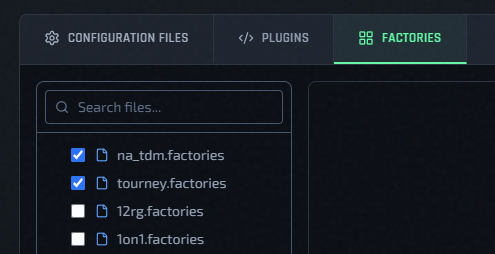
This means you can have completely different plugin and factory sets per instance. Two instances on the same host can each have their own independent selection.
The saved preset keeps both the files and the selection state. A plugin or factory file can exist in the preset without being selected for deployment. When you deploy from that preset, only selected plugins and selected factories are applied.
The same applies to LD_PRELOAD user hooks: saving a preset also records which of its hook files were enabled (and their load order) on the instance you saved from. Loading that preset onto another instance and saving replaces that instance's enabled hooks to match — the same replace-on-load behavior as plugin and factory selections. Presets saved before this feature existed don't have a recorded hook selection; loading one leaves the target instance's hook enablement untouched.
The same applies to 99k LAN Rate: saving a preset also records whether it was enabled on the instance you saved from, and loading that preset applies the same toggle state to the target. If the target host doesn't support 99k LAN Rate, the preset's saved value is ignored rather than applied. Presets saved before this feature existed don't have a recorded LAN rate preference; loading one leaves the target's current LAN rate setting untouched.
Load A Saved Preset
Use Load Preset in the deploy form or in Edit Config to open the Preset Manager on the Load Preset tab:
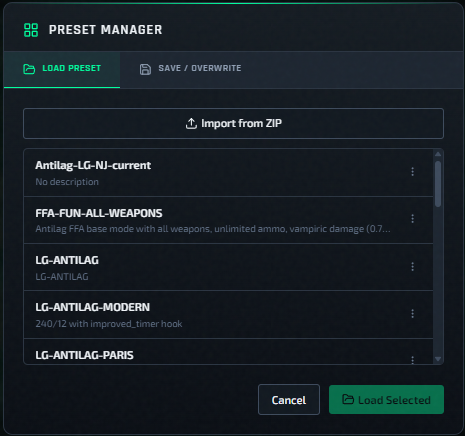
Loading a preset overwrites the current draft with the saved config files, plugin file tree, plugin selections, factory files, and factory selections.
- Built-in presets (e.g.,
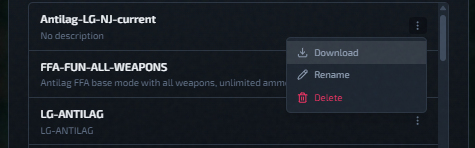
default) are always available and cannot be deleted or downloaded. - User-created presets can be downloaded, renamed, or deleted from the row menu on this tab.
Export A Preset
Any user-created preset can be downloaded as a ZIP archive from the row menu (⋮) on the Load Preset tab:
Another way to download a preset is to click Download button right after saving one from the Save / Overwrite tab:
Built-in presets cannot be downloaded.
The archive contains the full preset directory: config files (server.cfg, mappool.txt, access.txt, workshop.txt, and any custom .cfg/.txt files), plugin files and factory files, LD_PRELOAD user hooks, checked plugin/factory selections, enabled-hooks selection, the 99k LAN Rate toggle state, and export metadata. Use this to back up a preset or move it to another QLSM instance.
Import A Preset
Click Import from ZIP on the Load Preset tab and choose a previously exported archive:

QLSM validates the archive before writing anything — corrupt or unreadable entries are rejected up front.
If the archive's preset name collides with an existing one, or isn't usable as-is, you're prompted to either overwrite the existing preset or import as new under a different name.
Custom Preset Workflow
- Open Deploy New Instance (or Edit Config on an existing instance).
- Adjust config files, plugin files, plugin selections, factory files, and factory selections for your gamemode.
- Click Save Preset and give it a name.
- On future deployments, click Load Preset and select your saved preset.
Update A Loaded Preset
If you load a user-created preset and then change the draft, click Save Preset to open the Preset Manager's Save / Overwrite tab. Selecting or typing the existing preset name switches the form into overwrite mode, with a warning border, an Overwriting badge, and an Overwrite Preset button.
- Built-in presets never enter overwrite mode — they cannot be modified.
- Use a different name to create your own editable copy of any preset, including built-ins.
- The description auto-fills from the matched preset until you edit it manually.
Instance-Specific Ownership
A preset is only input at deploy time. After the instance is created, it keeps its own independent file set.
- Editing an instance's config later affects only that instance.
- Editing an instance's plugin or factory files later affects only that instance.
- Other instances are not affected.
- The original preset files are not modified.