Edit Configs, Plugins, Factories, And Hooks
Configuration Files
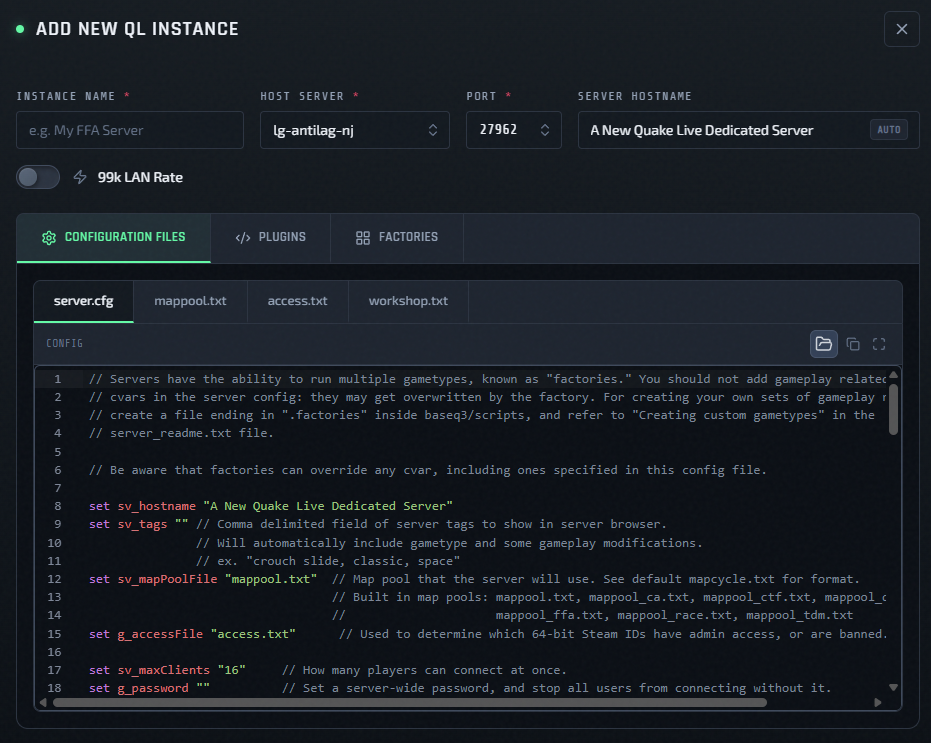
The Config tab uses the file manager. These protected baseline files are always present:
server.cfgmappool.txtaccess.txtworkshop.txt
Protected files can be edited, but they cannot be renamed or deleted. You can also add custom flat .cfg and .txt files with New or Upload. Custom config files can be renamed or deleted.
You can also create subfolders (one level deep) to hold .ent entity override files. Use the New dropdown and choose New Folder to create a subfolder, then add .ent files inside it. Subfolders and the .ent files within them can be renamed or deleted via the row context menu (⋮).
Editor Buttons
The file manager includes these controls where the file type supports them:
- Create a new file
- Upload file content

- Rename or delete a selected custom file
- Copy content

- Expand to full-screen editor

Use Upload when you want to bring in an existing file from another server. Use Copy when you want to export the current text. Use Expand when you need more room for editing.
Linting
server.cfgshows inline lint diagnostics.- In the deploy form, instance creation is blocked if
server.cfghas blocking lint errors.
Restart After Saving

- If Restart after saving is enabled, QLSM syncs the updated config to the instance and immediately restarts it, so the new config is applied right away.
- If Restart after saving is disabled, QLSM still pushes and syncs the updated config to the instance, but it is not applied until that instance is restarted later.
When restart is skipped, the instance remains Updated until QLSM confirms that the service has started a new runtime and that runtime has reported live status. This applies to both configuration saves and Workshop updates and also covers the next scheduled auto-restart. An instance that was already stopped remains Stopped after a no-restart Workshop update.
When a managed or manual restart is requested through QLSM, the instance returns to Running promptly after Ansible completes.
Managed server.cfg Cvars
QLSM applies several runtime cvars outside the raw server.cfg text during deploy, restart, and config apply.
These cvars are ignored by QLSM regardless of whether they are present in server.cfg.
| Cvar | How QLSM manages it | Effect of value in server.cfg |
|---|---|---|
net_ip |
Forced by QLSM. | Ignored. QLSM always injects "" (binds all interfaces, required for 99k LAN rate to work). |
net_port |
Stored as the instance port and passed at launch. | Ignored. A value in server.cfg does not change the instance port. |
sv_serverType |
Controlled by the 99k LAN rate toggle. | Ignored. QLSM injects 1 when 99k LAN rate is enabled, otherwise 2. On minqlxtended hosts QLSM always injects 1. |
sv_lanForceRate |
Controlled by the 99k LAN rate toggle. | Ignored. QLSM injects 1 when 99k LAN rate is enabled, otherwise 0. On minqlxtended hosts QLSM always injects 1 — see 99k LAN Rate. |
net_strict |
Forced by QLSM. | Ignored. QLSM always injects 1. |
qlx_redisAddress |
Forced by QLSM. | Ignored. TCP hosts: 127.0.0.1:6379. Socket-enabled hosts: /var/run/redis/redis.sock. |
qlx_redisUnixSocket |
Forced by QLSM. | Ignored. Set to 1 on socket-enabled hosts; omitted on TCP hosts. |
qlx_redisPassword |
Forced by QLSM. | Ignored. QLSM injects the backend Redis password (self-host only). |
qlx_redisDatabase |
Chosen when the instance is created (Deploy A New Instance), otherwise derived from the instance port. | Ignored. QLSM injects the chosen DB, or port - 27959 if none was chosen. |
fs_homepath |
Derived from the instance port. | Ignored. QLSM injects /home/ql/qlds-<port>. |
qlx_pluginsPath |
Derived from fs_homepath. |
Ignored. QLSM injects the instance minqlx plugin path. |
zmq_rcon_enable |
Forced by QLSM. | Ignored. QLSM always injects 1. |
zmq_rcon_port |
Deterministically generated from the game port. | Ignored. QLSM injects 28888 + (port - 27960). |
zmq_rcon_password |
Generated and stored by QLSM. | Ignored. QLSM injects the instance secret. |
zmq_stats_port |
Deterministically generated from the game port. | Ignored. QLSM injects 29999 + (port - 27960). |
zmq_stats_password |
Generated and stored by QLSM. | Ignored. QLSM injects the instance secret. |
qlx_plugins |
Built from the Plugins tab selection. | Ignored. QLSM injects the Plugins tab selection. |
What the command line looks like
QLSM assembles all managed cvars into a single argument string that is passed to the QLDS binary at launch. The two examples below use real variable names from the instance record.
Example command line arguments with 99k LAN rate enabled (sv_serverType 1, sv_lanForceRate 1):
/home/ql/qlds-$port/run_server_x64_minqlx.sh
  +set sv_serverType 1
  +set sv_lanForceRate 1
  +set net_strict 1
  +set net_port $port
  +set sv_hostname "$hostname"
  +set qlx_redisAddress "127.0.0.1:6379"
  +set qlx_redisPassword "$redis_password"
  +set qlx_redisDatabase $redis_db_index
  +set fs_homepath /home/ql/qlds-$port
  +set qlx_pluginsPath /home/ql/qlds-$port/minqlx-plugins
  +set zmq_rcon_enable 1
  +set zmq_rcon_port $zmq_rcon_port
  +set zmq_rcon_password "$zmq_rcon_password"
  +set zmq_stats_port $zmq_stats_port
  +set zmq_stats_password "$zmq_stats_password"
  +set qlx_plugins "names of plugins from the Plugins tab selection"
Socket-enabled host — Redis-specific args only (cloud or standalone after Re-run Host Setup). All other managed cvars are the same as the example above; only the Redis lines differ:
+set qlx_redisAddress "/var/run/redis/redis.sock"
+set qlx_redisUnixSocket 1
+set qlx_redisDatabase $redis_db_index
Plugins
The Plugins tab manages Python plugins for this instance:
- folders and files in the plugin tree
.py,.txt, native.soplugin files, and font files (.ttf,.otf,.ttc,.otc,.woff,.woff2,.eot,.fon,.fnt,.pfb,.pfa,.pfm,.afm) for plugins that bundle a font asset- checkbox selection for which Python plugins are included in
qlx_plugins— top-level.pyfiles only. Files inside a subfolder have no checkbox: expand the folder and hover the info icon beside its name for the reason. Top-level__init__.pycarries its own info icon in place of a checkbox. Validatebutton for checking Python plugin files- binary file details and descriptions for
.sofiles
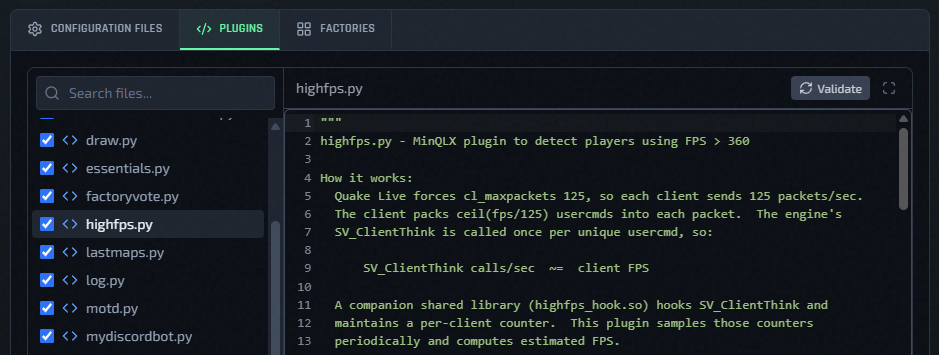
Use New, Upload, Rename, and Delete to stage plugin file changes. Plugin changes are saved through a draft workspace while the modal or deploy form is open; they are committed to the instance or preset only when you save, update, or create.
.so files are shown as binary files instead of text. You can replace the binary and add a short description so the file is easier to identify later.
Font files are shown the same way — binary, download/replace-only — but without the description field. Like any other file in this tab, they always sync to the instance or preset; there's no separate "enable" toggle for a font, since it's just an asset your plugin's own code loads at runtime.
Python Dependency Auto-Install
If your plugin directory contains a requirements.txt file, QLSM automatically runs pip install -r requirements.txt on the host every time you deploy or sync configs. You do not need to SSH into the host to install dependencies manually.
If pip encounters an error (e.g. a package unavailable on the host Python version), QLSM logs a warning but does not fail the deploy. Check the instance logs if a plugin behaves unexpectedly after a fresh deploy.
Validate Plugin
The Validate button appears when a Python plugin file is open. Use it to check the current editor contents for errors before saving or applying plugin changes.
When validation succeeds, QLSM confirms that the current plugin file passed its Python checks.

When validation fails, QLSM shows line-level errors above the editor. Fix the reported lines, then run Validate again.

Factories
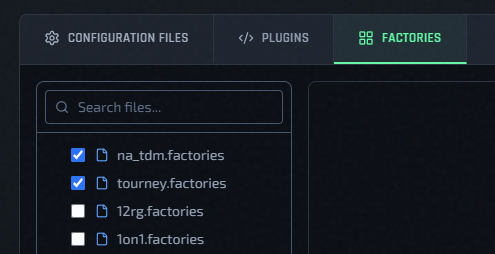
The Factories tab controls factory files included in the deployment bundle.
- Only selected factory files are applied to the instance.
- If you edit a factory file here, the edited version is what gets applied.
- You can create, upload, rename, and delete flat
.factoriesfiles.
Hooks
The Hooks tab manages LD_PRELOAD libraries — native .so files loaded into the QLDS process before it starts.
- System hooks are managed by QLSM and are read-only (e.g.
force_rate.sowhen 99k LAN rate is on). - User hooks are
.sofiles you upload. You can enable/disable, reorder (drag), and delete them.
QLSM validates that uploaded files are ELF binaries. Non-ELF files are rejected at upload. If a hook binary is missing from the host, QLSM shows a warning row with an option to remove the stale entry.
Full guide: LD_PRELOAD Hooks