Instance Actions Menu
Open from instance row Actions in the Servers page.
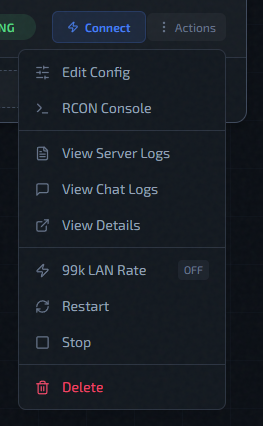
Use this menu for day-to-day instance operations: change config, run live admin commands, inspect logs, toggle LAN rate, restart, stop/start, or remove the instance.
How To Choose The Right Action
| Action | Use it when | What happens next |
|---|---|---|
| Edit Config | You need to change config files, plugins, factories, hostname, or the per-instance 99k LAN rate setting. | Opens the full config editor. Saving can optionally restart the instance. |
| RCON Console | You need to run live Quake commands on a running server. | Opens the interactive console immediately. |
| View Server Logs | You are debugging startup, restart, config apply, or runtime issues. | Opens the remote log viewer with filters. |
| View Chat Logs | You need player chat history rather than service logs. | Opens the chat log viewer with file selection. |
| View MinQLX Logs | You want MinQLX plugin activity — events, votes, console output — with syntax highlighting. | Opens the MinQLX log viewer with file selection. |
| View Details | You want the drawer with metadata, live status, and quick context. | Opens the instance details panel. |
| 99k LAN Rate | You want to toggle the instance between standard and 99k mode. | Queues reconfiguration and restart. |
| Restart | You want a clean service restart without editing config. | Queues an instance restart task. |
| Start / Stop | You want to bring a stopped server up or stop a running one. | Sends the matching start or stop action. |
| Delete | You want to remove the instance entirely. | Queues instance deletion. |
Menu Layout
The menu is grouped by intent, which makes it faster to scan once you know the pattern:
- Top section: Edit Config and RCON Console for direct administration.
- Middle section: View Server Logs, View Chat Logs, View MinQLX Logs, and View Details for inspection.
- Lower section: 99k LAN Rate, Restart, and Start / Stop for state-changing operations.
- Bottom section: Delete by itself because it is destructive.
Edit Config
Use Edit Config when the change belongs to this instance only.
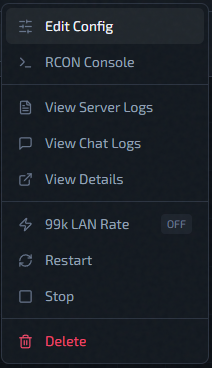
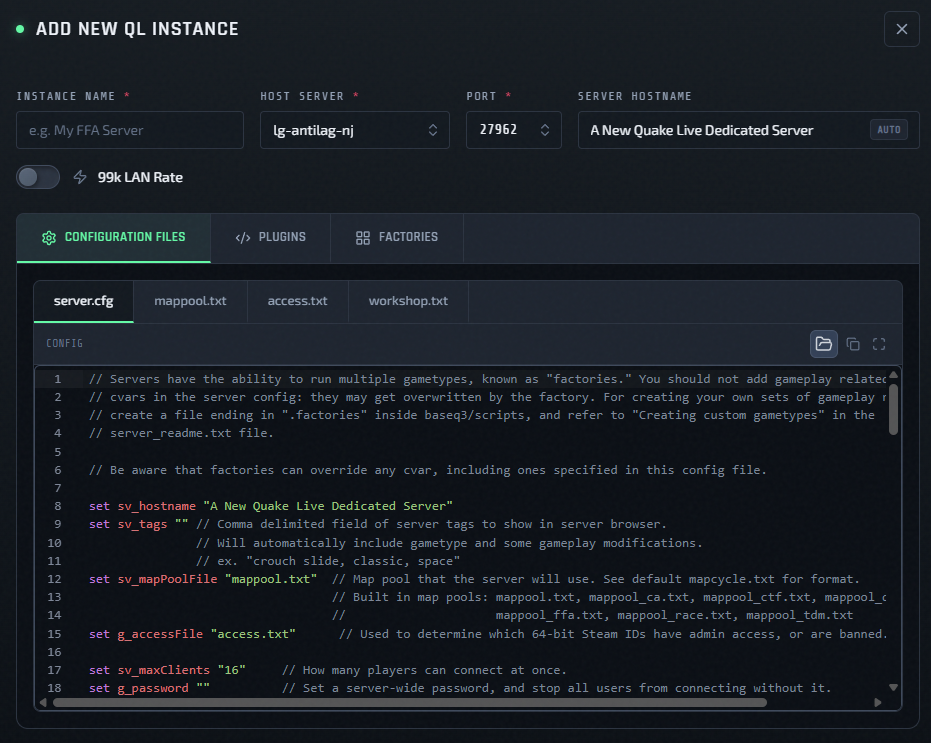
Inside the modal you can change:
server.cfg,mappool.txt,access.txt, andworkshop.txt- plugin files and plugin selection
- factory files and factory selection
- instance hostname and LAN rate setting
- preset load/save actions for reusing a working configuration
Important behavior:
- Instance edits are local to that instance. They do not modify the default preset or sibling instances.
- Restart after saving is available in the editor.
- If you change 99k LAN Rate inside the editor, restart becomes mandatory for that save.
- Each config tab supports Upload, which is useful when migrating an existing server setup.
Read-Only Actions
These actions do not change the instance directly:
- View Server Logs for service output and deployment diagnostics.
- View Chat Logs for player chat history and rotated
chat.logfiles. - View MinQLX Logs for MinQLX plugin activity and rotated
minqlx.logfiles. - View Details for a broader drawer view, including live status context.
Use logs when something failed. Use details when you want context. Use chat logs when the question is about player activity rather than server behavior.
RCON Console
Use RCON Console for live administration on a server that is already running.
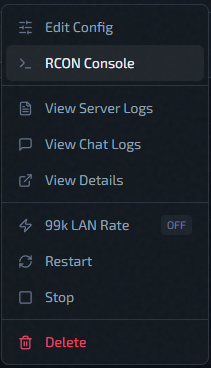
RCON is the fastest option when you need an immediate game-side command such as status, map changes, or plugin commands. If the menu item is disabled, the instance is usually not in a ready state or is missing RCON connectivity details.
Reference: RCON Console
99k LAN Rate
99k LAN Rate is a per-instance toggle shown directly in the menu.
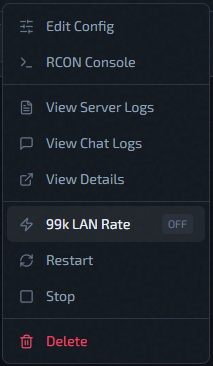
What to expect:
ONmeans the instance is using the high-bandwidth LAN-rate path.OFFmeans standard rate behavior.- Toggling this action queues a reconfigure and restart cycle.
Use this action only when you intentionally want to change gameplay/network behavior, not as a general troubleshooting step.
Start, Stop, Restart, And Delete
Use these actions based on intent:
- Restart when you want a clean bounce after a change or for recovery.
- Stop when you want the service offline but want to keep the instance.
- Start appears instead of Stop when the instance is already stopped.
- Delete is for permanent removal, not troubleshooting.
A stopped instance stays stopped through host reboots, including scheduled Auto-Restart windows — it will not come back up on its own until you click Start.
If you only changed config and skipped restart in the editor, use Restart afterward to apply the new runtime state.
When Actions Are Disabled
Most state-changing actions are blocked while the instance is busy.
Typical busy states:
deployingconfiguringrestartingdeletingstoppingstarting
Special cases:
- RCON Console is available only when the instance is
running,active, orupdated, and has RCON connectivity configured. - View Details remains available even when other actions are blocked.
- Start / Stop is disabled for
idleinstances.
If a button is disabled, wait for the transitional state to finish, then try again.